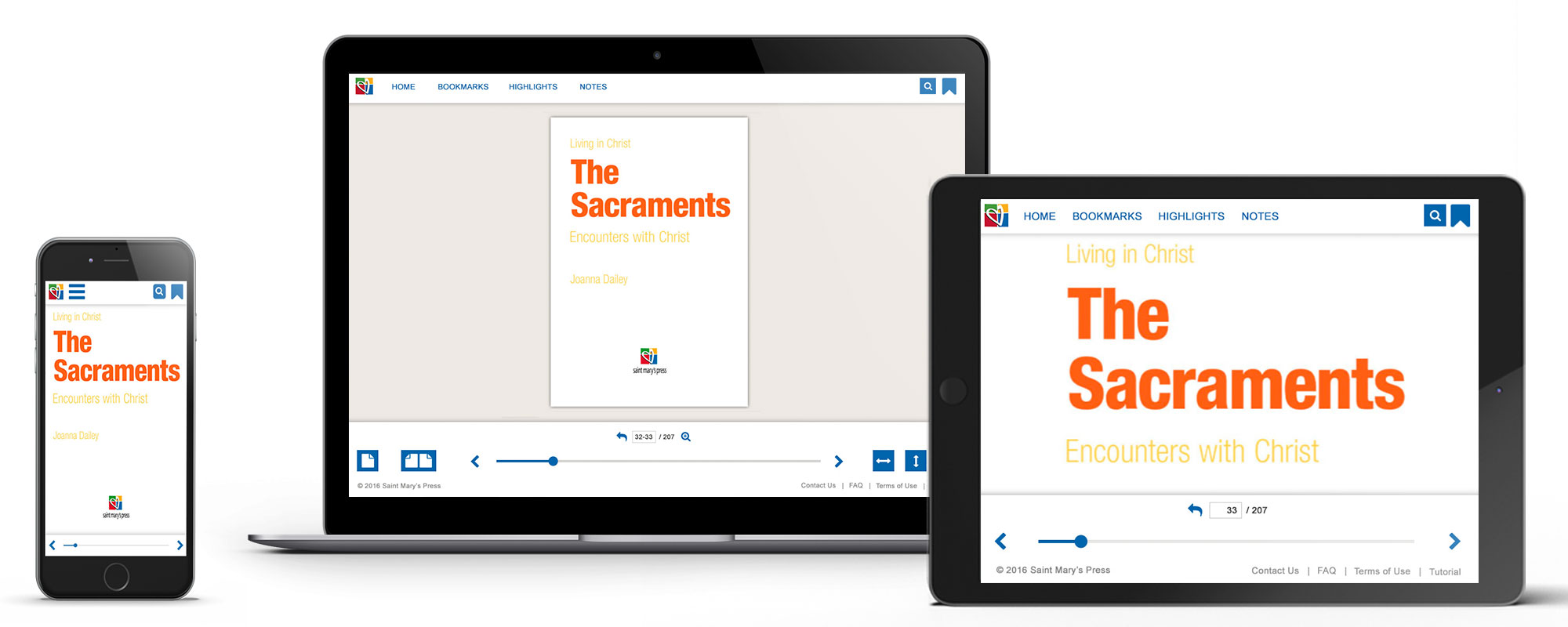
Competitive Research & Discovery
I researched top competitive eReaders that had publishing and school-based eBooks. In the competitive research document turned over listed the company, new features, what was done well and could have done better.
I conducted group and one on one meetings, where I walked through the current product. I established clear overview of user types of instructor (teacher), students and client side (admins). Followed by a user flow through the eBook and identified core features and functions that were important to the new product.
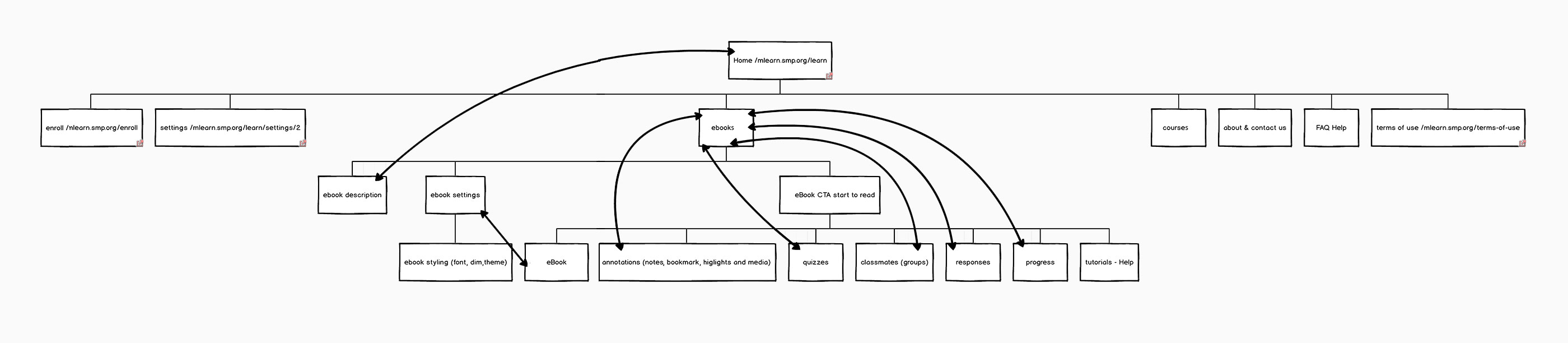
eBook Integration into mLearn Sitemap
Wireframes of Page Types & Functions
Wireframes were created, showing the page types for eBook. Followed by wireframes that highlighted tools and functions. Also, displaying pathways and user flows on each wireframe.
Left Side Navigation
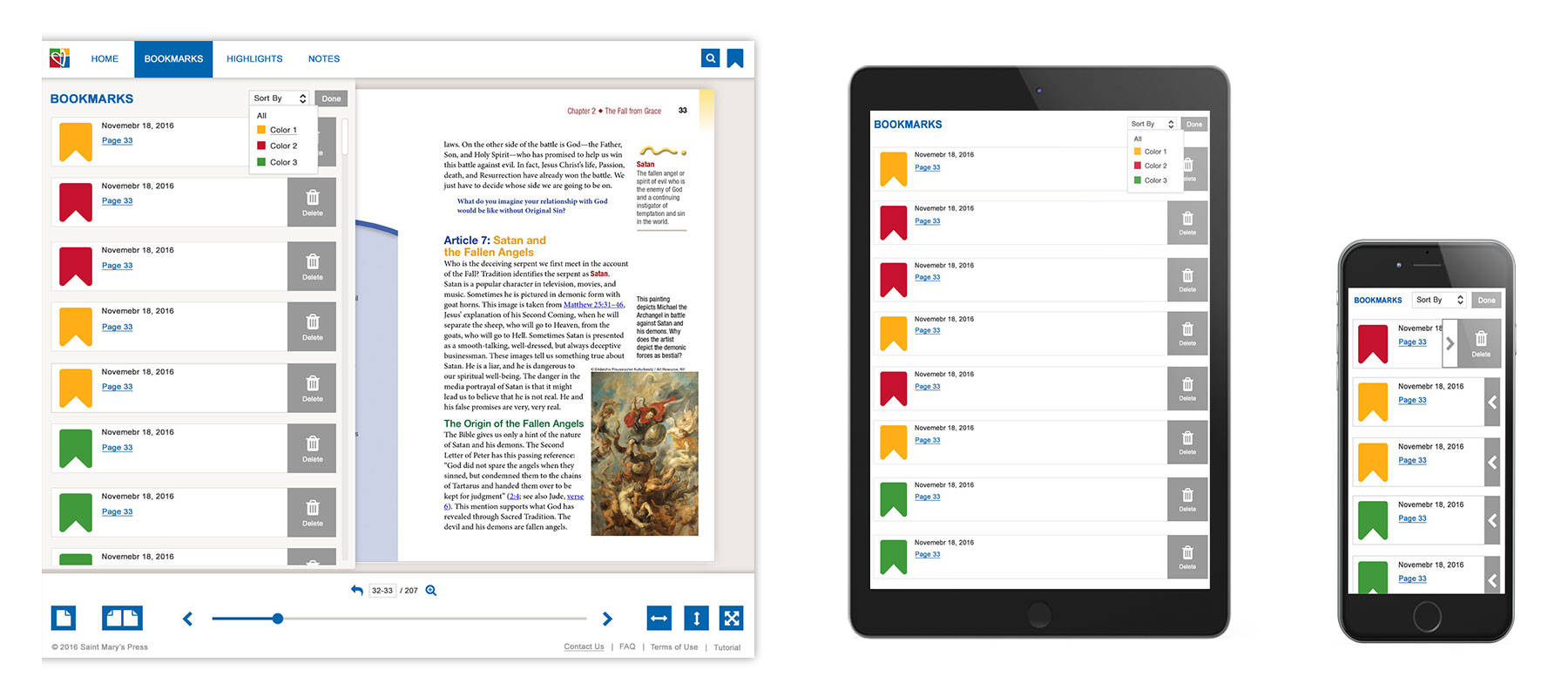
Bookmark
Existing bookmarks are accesses in the left side menu. The user can remove or navigate to the bookmarked page.
Each page has its own bookmark, so if you user was viewing the eBook with double pages two bookmarks would be available. Also, on the page bookmarks can be removed.
Highlights
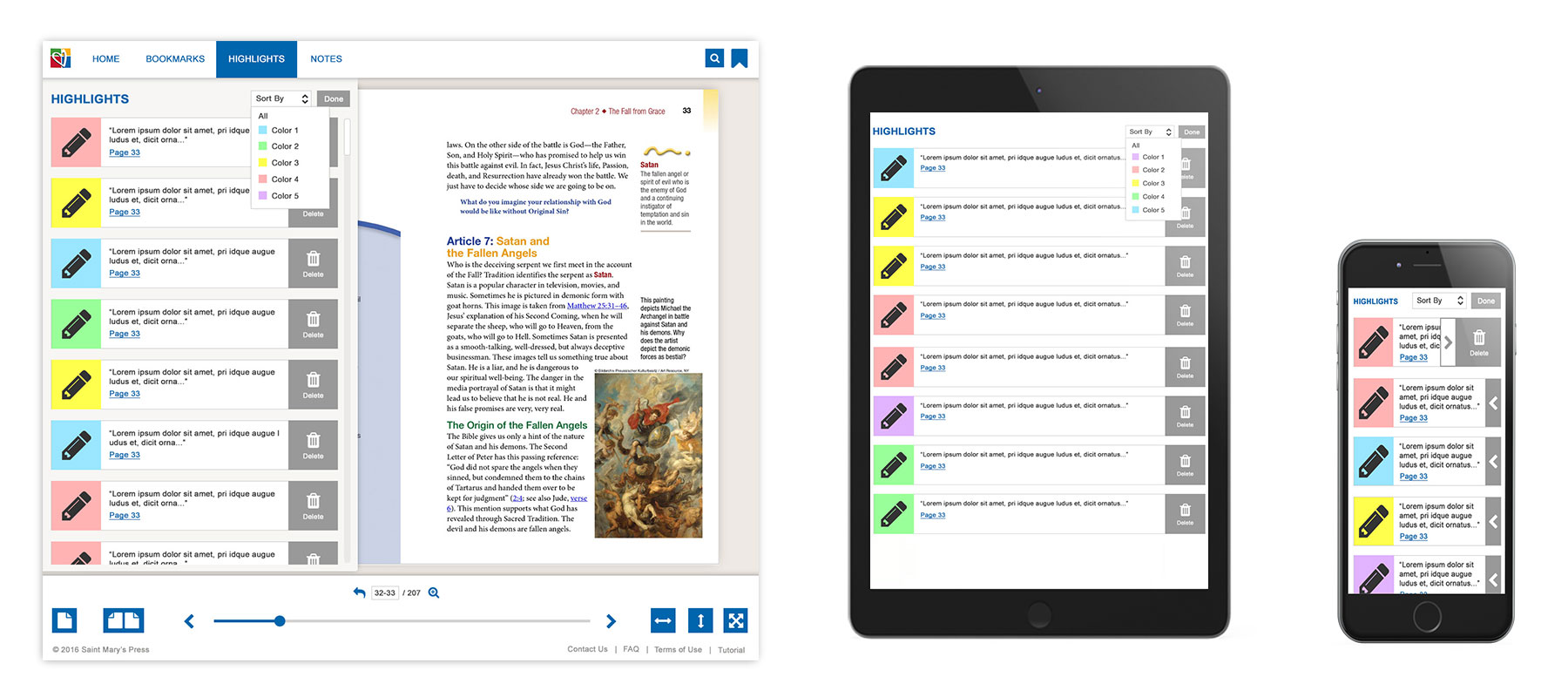
Existing highlights are accessed in the left side menu. The user can view, remove, or navigate to the highlighted text.
Notes
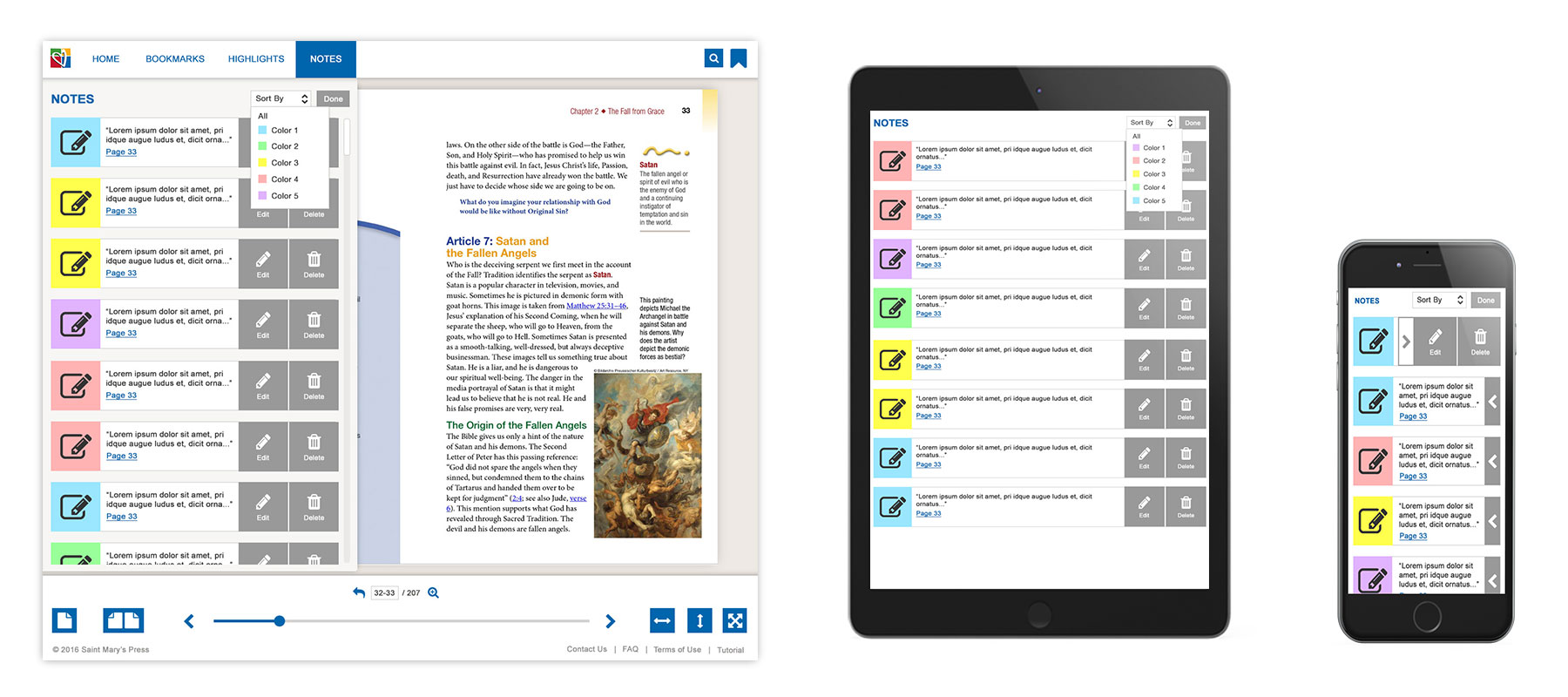
Existing notes are accessed in the left side menu. Within this menu they can view (within a certain character count), remove, and open the note on the page it was created.
Right Side Navigation
Dictionary
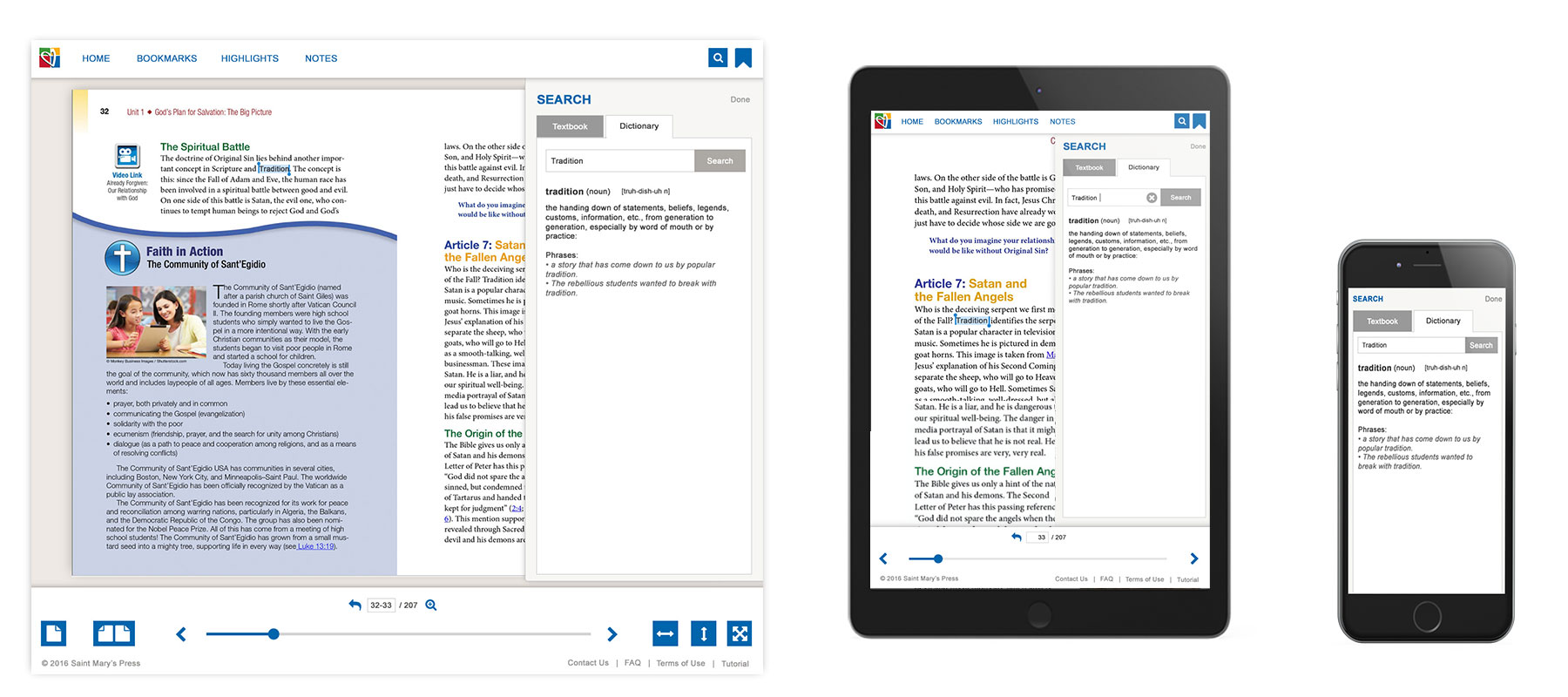
The dictionary will be pulling from an API and dynamically populated in the eBook. The text can be selected on a page in the eBook and navigate by the pop-up menu, to prepopulated dictionary or text search menu option or entered manually.
Text Search
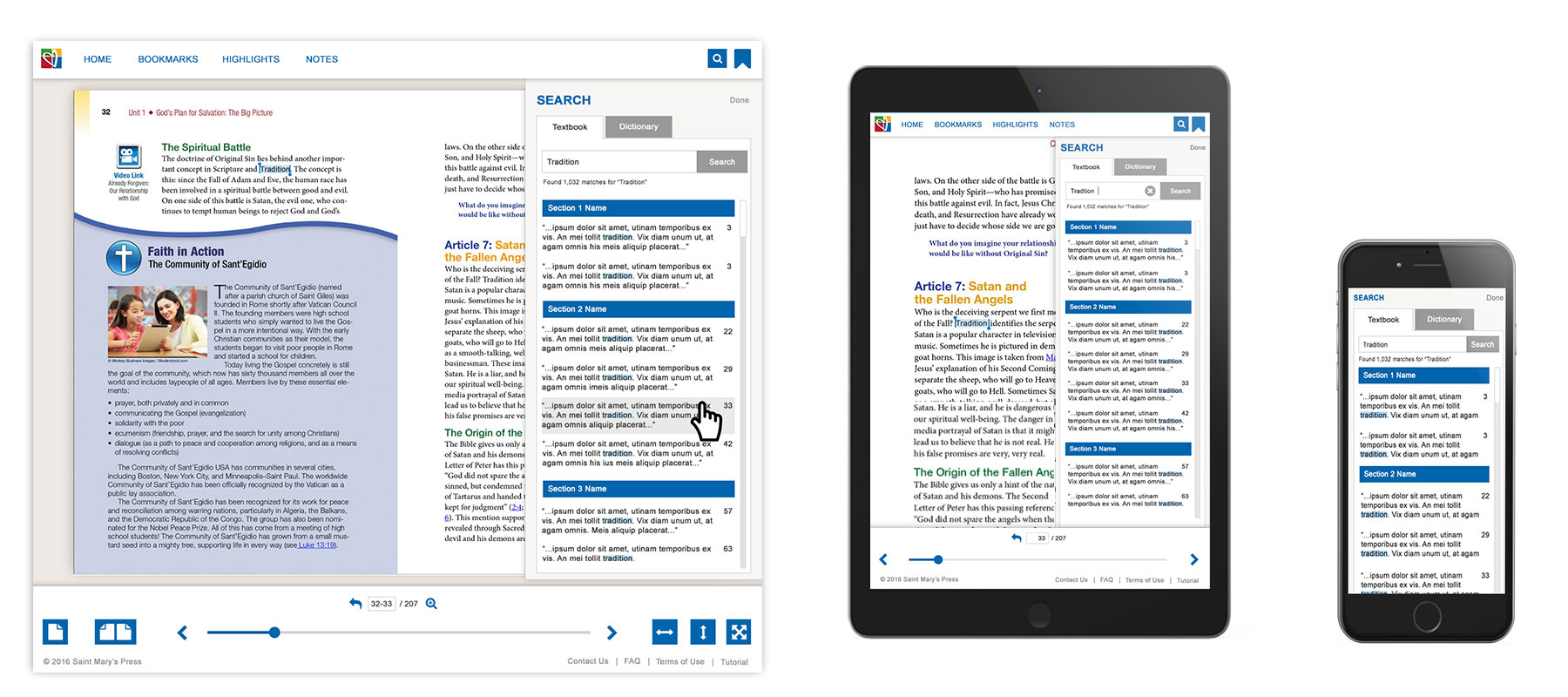
Text can be select on a page in the eBook. Then they navigated by pop up menu, to prepopulated dictionary or text search menu option or entered manually. The text search results will show the first 50 and load on scroll.
Modal
Text Selecting Menu
When text was selected, and modal menu would appear. This menu provides color selection for the highlight, notes, search textbook or dictionary. The option to select already highlighted text provided a secondary menu that lets the user change colors, remove highlight, make, edit, or delete notes.
The search icon would open to both dictionary and text option with the words populated on both functions.
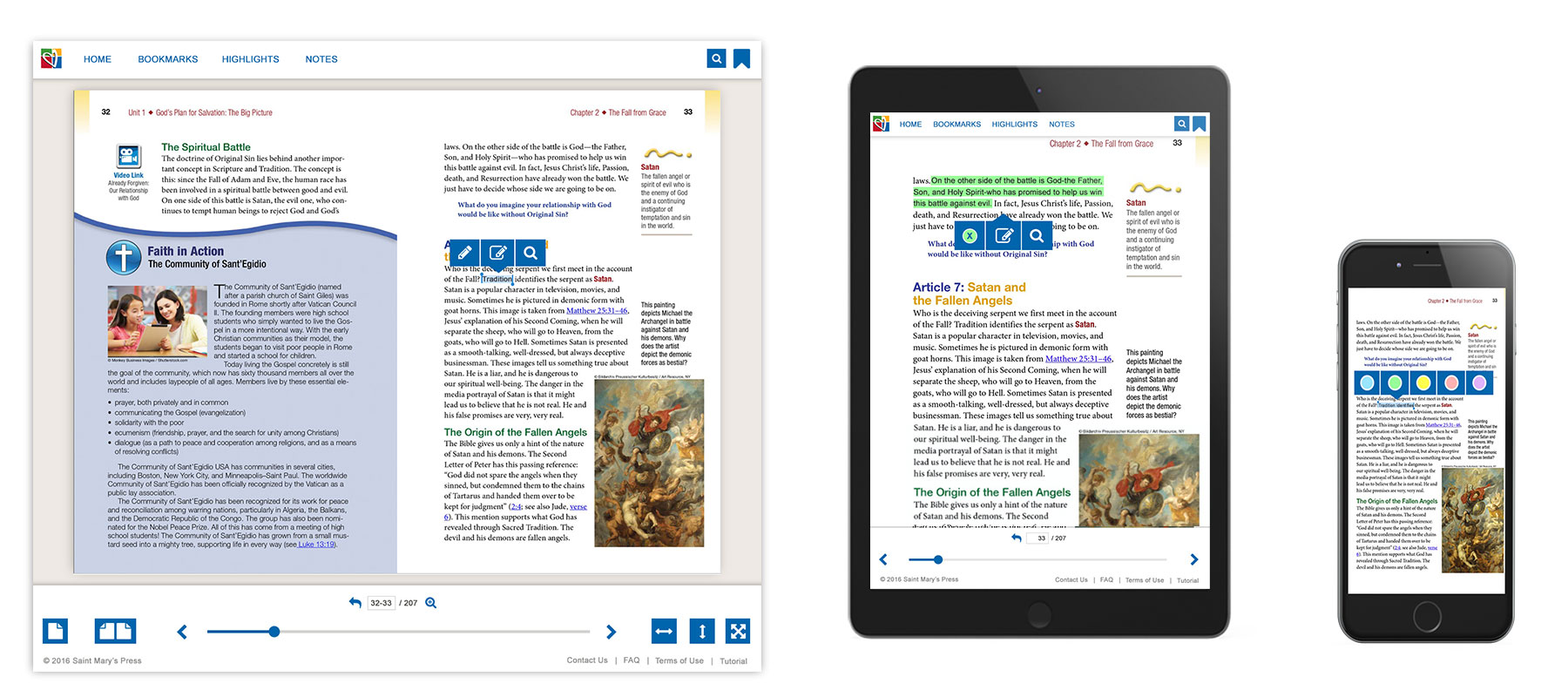
Note Making
The user selects text on a page in the eBook. Then they select the notes icon in the pop-up menu and the note modal opens with color options. The notes are saved by keystrokes, but we have basic close, etc. buttons.
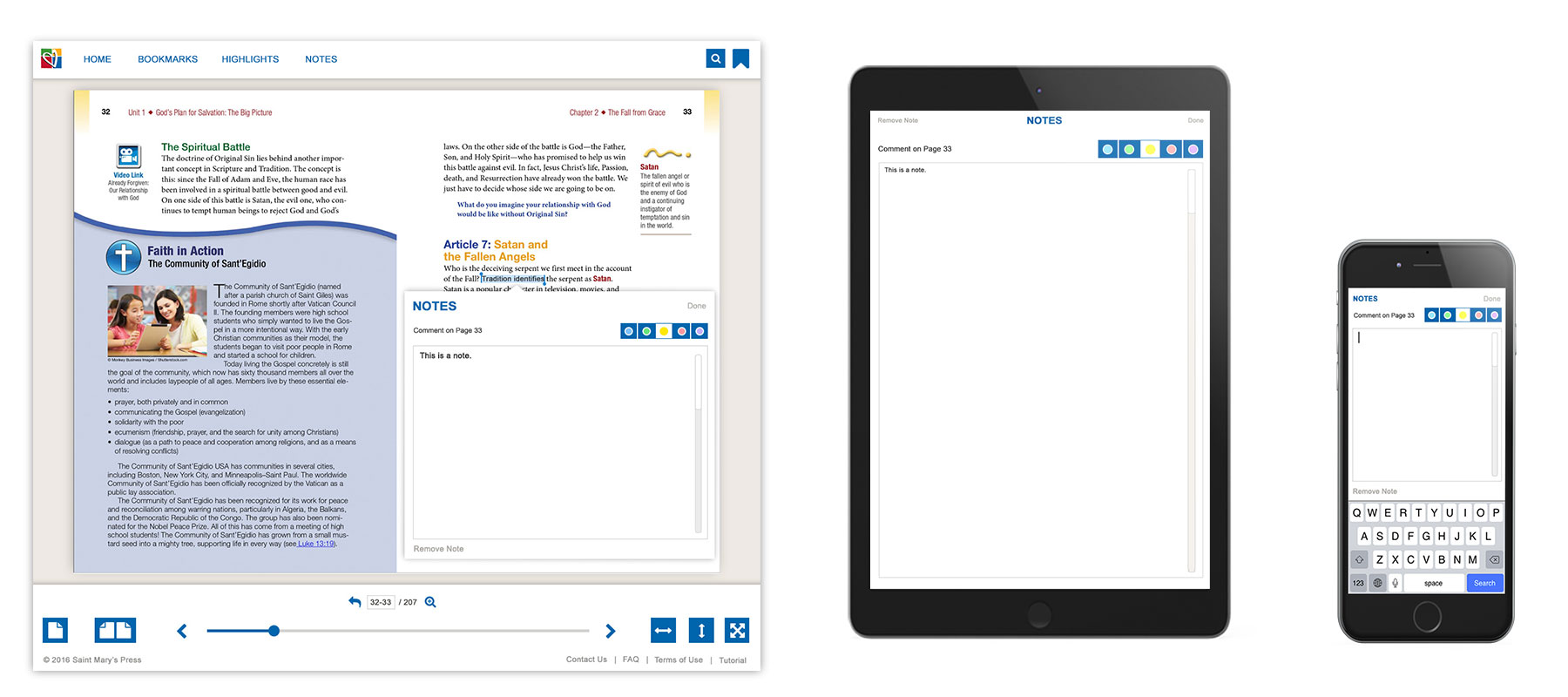
External Links
Our eBooks for school contain external links within the PDF. We did not want users to be redirected out of the eBook, so we were dynamically having the links open into a modal.
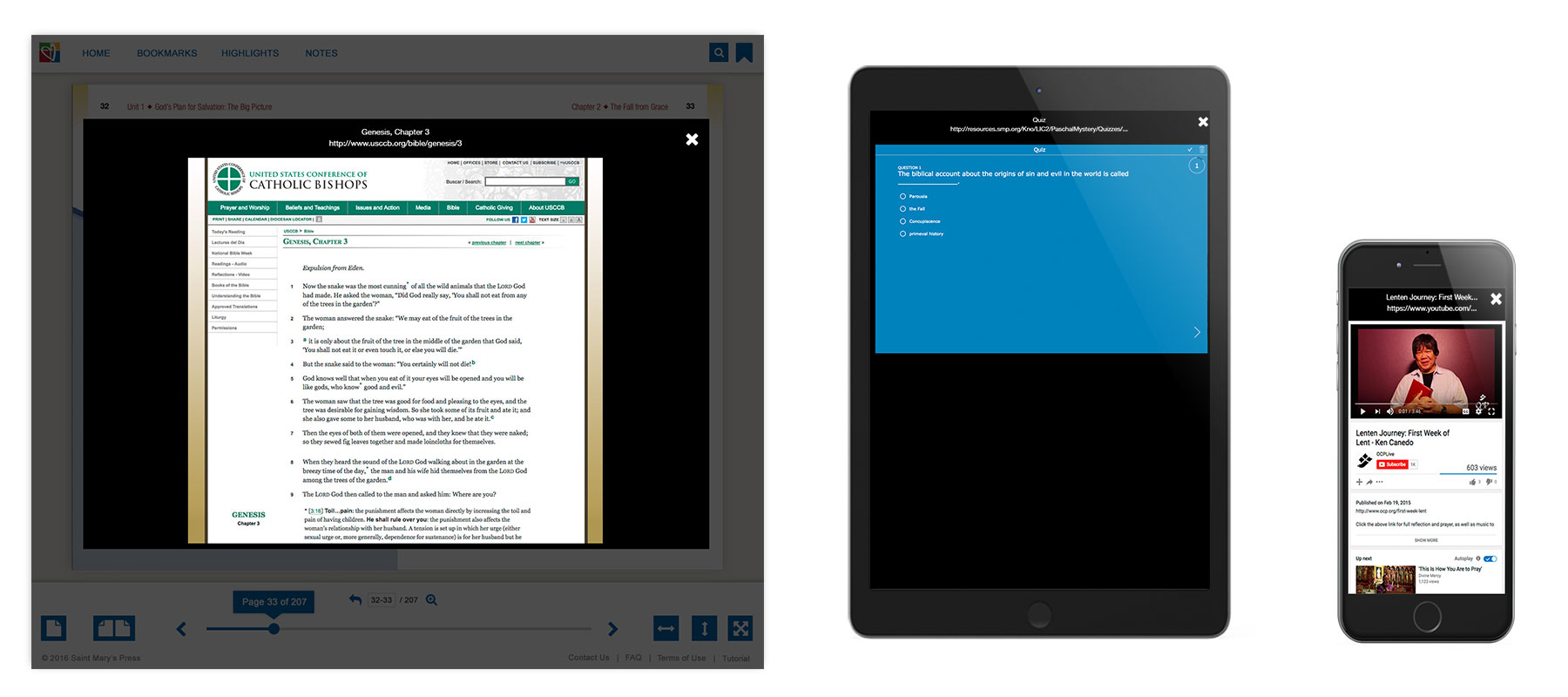
Tutorials
When a user first entered a site tutorial will pop-up showing the user around. Also, there is an option to select tutorial whenever, located in the menu.
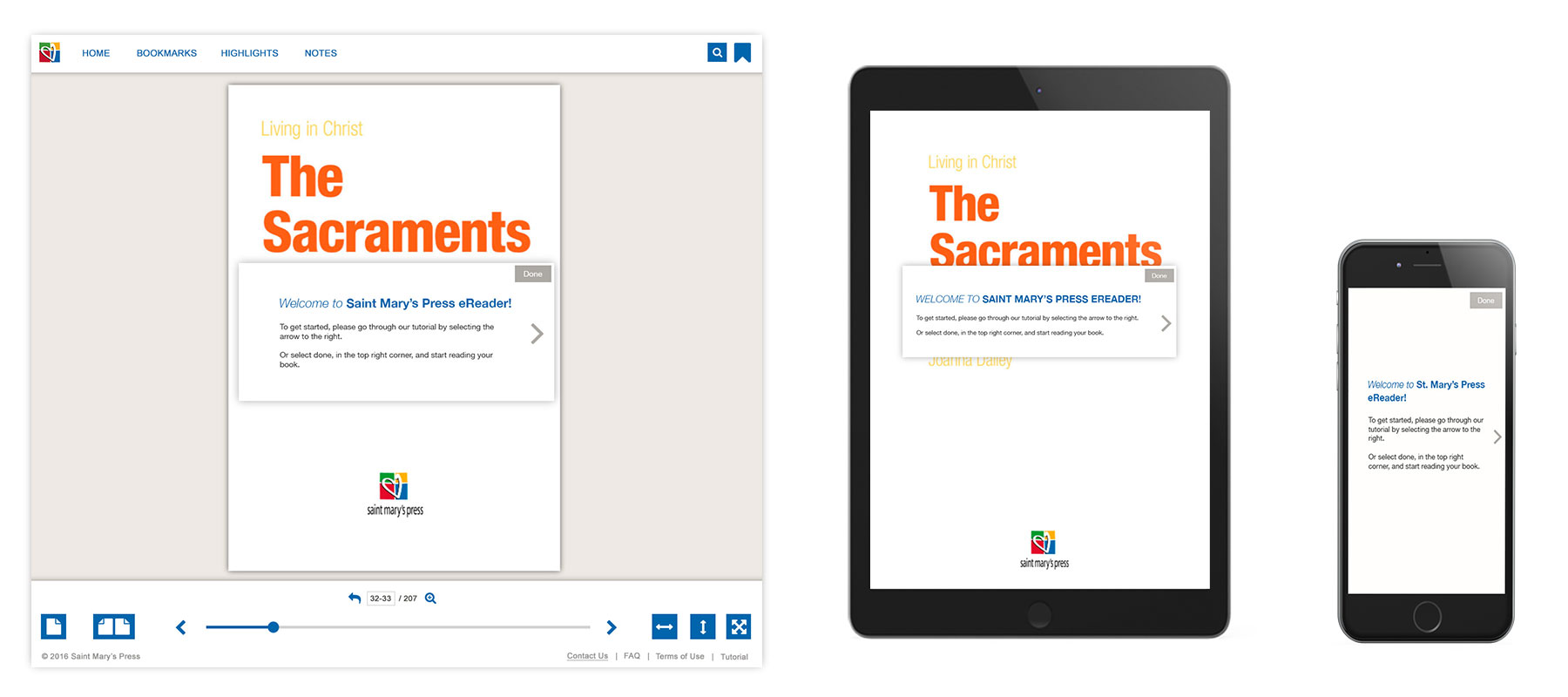
Visual Designs